Menu Horisontal

Tampilkan postingan dengan label DataGridView. Tampilkan semua postingan

Selasa, 07 November 2017

Sub Total dan Grand Total di Datagridview VB.net

Setelah lama vacum dari blogger, tiba2 teman menanyakan bagaimana caranya membuat Sub Total dan Grand Total di Datagridview seperti dibawah ini


setelah dicoba-coba akhirnya dapat procedure seperti dibawah ini. Procedurenya simpan di modul

ini procedure SubTotal

Public Sub SubTotalDGV(dgv As DataGridView, GroupOn As Integer, TotalOn As Integer, Warna As Color)
        Dim clST As New DataGridViewTextBoxColumn
        Dim clSTID As New DataGridViewTextBoxColumn
        Dim Total As Double = 0
        Dim SubTotalID As String = ""
        Dim i As Integer = 0

        If dgv.Rows.Count = 0 Then Exit Sub

        With clST
            .HeaderText = "SubTotalID"
            .Name = "SubTotalID"
            .Width = 120
            .ReadOnly = True
            .Visible = False
        End With

        With clSTID
            .HeaderText = "KodeAsal"
            .Name = "KodeAsal"
            .Width = 120
            .ReadOnly = True
            .Visible = False
        End With

        If dgv.Columns.Contains("SubTotalID") = False Then dgv.Columns.Add(clST)
        If dgv.Columns.Contains("KodeAsal") = False Then dgv.Columns.Add(clSTID)
        For k As Integer = 0 To dgv.Rows.Count - 1
            If dgv.Rows(k).Cells("SubTotalID").Value Is Nothing Then
                dgv.Rows(k).Cells("SubTotalID").Value = "0"
                dgv.Rows(k).Cells("KodeAsal").Value = dgv.Rows(k).Cells(GroupOn).Value
            End If
        Next

        SubTotalID = dgv.Rows(0).Cells(GroupOn).Value.ToString
        Do
            If SubTotalID = dgv.Rows(i).Cells("KodeAsal").Value.ToString And dgv.Rows(i).Cells("SubTotalID").Value.ToString = "0" Then
                Total += Convert.ToDouble(dgv.Rows(i).Cells(TotalOn).Value)
            Else
                If dgv.Rows(i).Cells("SubTotalID").Value.ToString = "0" Then
                    dgv.Rows.Insert(i, 1)
                End If
                dgv.Rows(i).Cells(TotalOn).Value = Total
                dgv.Rows(i).Cells("SubTotalID").Value = "1"
                dgv.Rows(i).Cells("KodeAsal").Value = SubTotalID
                dgv.Rows(i).DefaultCellStyle.BackColor = Warna

                If (i) < dgv.Rows.Count - 1 Then
                    i += 1
                    SubTotalID = dgv.Rows(i).Cells(GroupOn).Value.ToString
                    Total = (Convert.ToDouble(dgv.Rows(i).Cells(TotalOn).Value))
                End If
            End If

            If dgv.Rows.Count - 1 = (i) Then
                If dgv.Rows(i).Cells("SubTotalID").Value.ToString = "0" Then
                    dgv.Rows.Insert(i + 1, 1)
                    dgv.Rows(i + 1).Cells(TotalOn).Value = Total
                    dgv.Rows(i + 1).Cells("SubTotalID").Value = "1"
                    dgv.Rows(i + 1).Cells("KodeAsal").Value = SubTotalID
                    dgv.Rows(i + 1).DefaultCellStyle.BackColor = Warna
                Else
                    dgv.Rows(i).Cells(TotalOn).Value = Total
                    dgv.Rows(i).Cells("SubTotalID").Value = "1"
                    dgv.Rows(i).Cells("KodeAsal").Value = SubTotalID
                    dgv.Rows(i).DefaultCellStyle.BackColor = Warna
                End If
                Exit Do
            End If
            i += 1
        Loop Until (i) > dgv.Rows.Count - 1
    End Sub


ini Procedure Grand Total

    Public Sub GrandTotalDGV(dgv As DataGridView, TotalOn As Integer, Warna As Color)
        Dim Total As Double = 0

        If dgv.Columns.Contains("SubTotalID") = False Then
            dgv.Columns.Add("SubTotalID", "SubTotalID")
            dgv.Columns("SubTotalID").Visible = False
            For k As Integer = 0 To dgv.Rows.Count - 1
                If dgv.Rows(k).Cells("SubTotalID").Value Is Nothing Then
                    dgv.Rows(k).Cells("SubTotalID").Value = "0"
                End If
            Next
        End If

        For i As Integer = 0 To dgv.Rows.Count - 1
            If dgv.Rows(i).Cells("SubTotalID").Value.ToString = "0" Then
                Total += Convert.ToDouble(dgv.Rows(i).Cells(TotalOn).Value)
            End If
        Next

        Dim x As Integer = dgv.Rows.Count - 1
        If dgv.Rows(dgv.Rows.Count - 1).Cells("SubTotalID").Value.ToString = "2" Then
            dgv.Rows(x).Cells(TotalOn).Value = Total
            dgv.Rows(x).DefaultCellStyle.BackColor = Warna
        Else
            dgv.Rows.Insert(x + 1, 1)
            dgv.Rows(x + 1).Cells(TotalOn).Value = Total
            dgv.Rows(x + 1).Cells("SubTotalID").Value = "2"
            dgv.Rows(x + 1).DefaultCellStyle.BackColor = Warna
        End If
    End Sub


Ini Procedure untuk menghapus Sub Total dan Grand Total

    Public Sub ClearSubTotalDGV(dgv As DataGridView)
        For i As Integer = dgv.Rows.Count - 1 To 0 Step -1
            If dgv.Columns.Contains("SubTotalID") = True Then
                If dgv.Rows(i).Cells("SubTotalID").Value.ToString <> "0" Then
                    dgv.Rows.RemoveAt(i)
                End If
            End If
        Next
        If dgv.Columns.Contains("SubTotalID") = True Then dgv.Columns.Remove("SubTotalID")
        If dgv.Columns.Contains("KodeAsal") = True Then dgv.Columns.Remove("KodeAsal")
    End Sub


cara memanggilnya sebagai berikut

        ClearSubTotalDGV(dgv)
        SubTotalDGV(dgv, 1, 2, Color.Aquamarine)
        SubTotalDGV(dgv, 1, 3, Color.Aquamarine)
        GrandTotalDGV(dgv, 2, Color.Yellow)
        GrandTotalDGV(dgv, 3, Color.Yellow)

Silahkan dicoba procedure diatas semoga bisa bermanfaat

Syafruddin

Minggu, 06 Januari 2013

Penomoran Pada DatagridView VB.Net

Sumber : http://class-super.blogspot.com/search/label/VB.Net
Cara menambahkan nomor pada DatagridView :


Kode Program VB.Net :
Private Sub DataGridViewRowPostPaint(sender As Object, e As DataGridViewRowPostPaintEventArgs)
 Dim dg As DataGridView = DirectCast(sender, DataGridView) 
 Dim rowNumber As String = (e.RowIndex + 1).ToString() 
 While rowNumber.Length < dg.RowCount.ToString().Length
  rowNumber = "0" & rowNumber
 End While
 
 Dim size As SizeF = e.Graphics.MeasureString(rowNumber, Me.Font)
 If dg.RowHeadersWidth < CInt(size.Width + 20) Then
  dg.RowHeadersWidth = CInt(size.Width + 20)
 End If
 
 Dim b As Brush = SystemBrushes.ControlText
 e.Graphics.DrawString(rowNumber, dg.Font, b, e.RowBounds.Location.X + 15, _
 e.RowBounds.Location.Y + ((e.RowBounds.Height - size.Height) / 2))
End Sub

Jumat, 10 Agustus 2012

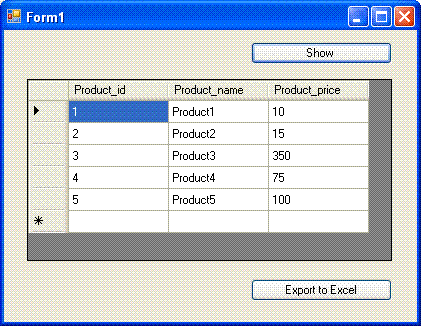
How to export from DataGridView to excel


For exporting data from Datagridview to Excel , connect database and load data from database to Datagridview and create a new excel file and write the data from Datagridview to Excel file .
vb.net_export_datagridview_toexcel.GIF
First step is to Load the Product table data to DataGridView , for detail of Product table please refer to Database Structure , and create new Excel file and write the data from Datagridview to Excel file.

Imports System.Data
Imports System.Data.SqlClient
Imports Excel = Microsoft.Office.Interop.Excel
Public Class Form1
    Private Sub Button1_Click(ByVal sender As System.Object, _
        ByVal e As System.EventArgs) Handles Button1.Click

        Dim cnn As SqlConnection
        Dim connectionString As String
        Dim sql As String

        connectionString = "data source=servername;" & _
        "initial catalog=databasename;user id=username;password=password;"
        cnn = New SqlConnection(connectionString)
        cnn.Open()
        sql = "SELECT * FROM Product"
        Dim dscmd As New SqlDataAdapter(sql, cnn)
        Dim ds As New DataSet
        dscmd.Fill(ds)
        DataGridView1.DataSource = ds.Tables(0)
        cnn.Close()
    End Sub

    Private Sub Button2_Click(ByVal sender As System.Object, _
    ByVal e As System.EventArgs) Handles Button2.Click


        Dim xlApp As Excel.Application
        Dim xlWorkBook As Excel.Workbook
        Dim xlWorkSheet As Excel.Worksheet
        Dim misValue As Object = System.Reflection.Missing.Value
        Dim i As Integer
        Dim j As Integer

        xlApp = New Excel.ApplicationClass
        xlWorkBook = xlApp.Workbooks.Add(misValue)
        xlWorkSheet = xlWorkBook.Sheets("sheet1")

        For i = 0 To DataGridView1.RowCount - 2
            For j = 0 To DataGridView1.ColumnCount - 1
                xlWorkSheet.Cells(i + 1, j + 1) = _
                    DataGridView1(j, i).Value.ToString()
            Next
        Next

        xlWorkSheet.SaveAs("C:\vbexcel.xlsx")
        xlWorkBook.Close()
        xlApp.Quit()

        releaseObject(xlApp)
        releaseObject(xlWorkBook)
        releaseObject(xlWorkSheet)

        MsgBox("You can find the file C:\vbexcel.xlsx")
    End Sub

    Private Sub releaseObject(ByVal obj As Object)
        Try
            System.Runtime.InteropServices.Marshal.ReleaseComObject(obj)
            obj = Nothing
        Catch ex As Exception
            obj = Nothing
        Finally
            GC.Collect()
        End Try
    End Sub
End Class

Baca Juga di : http://blog.triskanet.com/soft-developer/easy-way-export-datagridview-to-excel-vb-net-2008.html

Import File Excel Ke Vb.Net ?


Pertanyaan :
Gimana Sih Nampilin Data Dari File Excell Ke DataGrid ? Trus Insert Ke Database (Newbie Nih Big Smile) Mohon Pencerahan Kk Geek.Net
Thanks 


You can use the OleDb - Namespace. The rest is like Access, Sql Server etc.


Dim _oConn As OleDbConnection, _
_oCmd As OleDbCommand, _
_oDA As OleDbDataAdapter, _
_ds As New DataSet()

_oConn = New OleDbConnection("Provider=Microsoft.Jet.OleDb.4.0;Data Source=e:\temp\teilnehmer.xls;Extended Properties=""Excel 8.0""")
_oCmd = New OleDbCommand("Select * From [q_export_Teilnehmer$]", _oConn)
_oDA = New OleDbAdapter(_oCmd)

_oConn.Open()
_oDA.Fill(_ds, "Data")
_oConn.Close()

Console.WriteLine(_ds.GetXml())


q_export_Teilnehmer is the name of a table, so add '$'.


Private Sub BtnImport_Click(ByVal sender As System.Object, ByVal e As System.EventArgs) Handles BtnImport.Click
        Dim opendialog As New OpenFileDialog

        If opendialog.ShowDialog = Windows.Forms.DialogResult.OK Then
            TextBox1.Text = opendialog.FileName
            ImportAttendence(TextBox1.Text, DataGridView1)
        End If
    End Sub


    Public Function ImportAttendence(ByVal PrmPathExcelFile As String, ByVal dgv As DataGridView)
        Dim MyConnection As System.Data.OleDb.OleDbConnection

        Try

            Dim DtSet As System.Data.DataSet
            Dim MyCommand As System.Data.OleDb.OleDbDataAdapter
            MyConnection = New System.Data.OleDb.OleDbConnection("provider=Microsoft.Jet.OLEDB.4.0; " & "data source='" & PrmPathExcelFile & " '; " & "Extended Properties=Excel 8.0;")


            MyCommand = New System.Data.OleDb.OleDbDataAdapter("select * from [sheet1$]", MyConnection)
            MyCommand.TableMappings.Add("Table", "Attendence")
            DtSet = New System.Data.DataSet
            MyCommand.Fill(DtSet)

            dgv.DataSource = DtSet.Tables(0)
            MyConnection.Close()
        Catch ex As Exception
            MyConnection.Close()
        End Try
    End Function

Sekarang Dibalik Export Dari Datagridview -> Excell (VB9)

Jawaban 3 : (Sumber : http://vb.net-informations.com/datagridview/vb.net_datagridview_import.htm)

Imports System.Data.SqlClient
Public Class Form1
    Private Sub Button1_Click(ByVal sender As System.Object, ByVal e As System.EventArgs) Handles Button1.Click

        Dim MyConnection As System.Data.OleDb.OleDbConnection
        Dim DtSet As System.Data.DataSet
        Dim MyCommand As System.Data.OleDb.OleDbDataAdapter
        MyConnection = New System.Data.OleDb.OleDbConnection("provider=Microsoft.Jet.OLEDB.4.0;Data Source='c:\vb.net-informations.xls';Extended Properties=Excel 8.0;")
        MyCommand = New System.Data.OleDb.OleDbDataAdapter("select * from [Sheet1$]", MyConnection)
        MyCommand.TableMappings.Add("Table", "Net-informations.com")
        DtSet = New System.Data.DataSet
        MyCommand.Fill(DtSet)
        DataGridView1.DataSource = DtSet.Tables(0)
        MyConnection.Close()

    End Sub
End Class


Senin, 14 Mei 2012

Memasukan Data Dari DataGridView Ke Database Menggunakan VB.Net


Sumber : http://herosetyanofario.wordpress.com/2011/07/07/memasukan-data-dari-datagridview-ke-database-menggunakan-vb-net/ 
.Net
Seringkali kita kesulitan memasukan suatu value/data dari datagridview ke database. Kebanyakan di forum-forum yang berkaitan dengan datagridview (VB.Net) tidak membahas secara gamblang apabila datagridview yang dimaksud adalah unbound atau tidak terkait dengan datasource tertentu. Nah kali ini gw sharing bagaimana menggunakan datagridview yang unbound untuk dapat mem-passing value ke database yang telah kita buat.
Sebelum melangkah ke ‘area’ peng-codingan ada baiknya dulu kalo gw review database yang gw buat. Nah database yang gw buat ini menggunakan SQL Server 2005. Adapun attributes yang gw gunain adalah sbb :
Nama Database : datagridviewlatihan
Tabel : Employees
Kolom Database :
1. idanggota
2. namaanggota
3. alamat
4. kelamin

VB.NET 2005 DataGridView : How to do DataGridView cell validation?


Q: How to do DataGridView cell validation?

A: If you want take input directly in datagridview, column of string type takes any input but DataGridView default error dialog is shown when making invalid input i-e 123a for integer type column that asks to handle the DataError event of datagridview .
So you can use CellValidating event of DataGridView to validate integer type column as well as other.

Steps:
  • Use DataGridView's CellValidating event
  • Get the cell for which the event is called
  • If the cell is in EditMode then
  • Perform validation
CellValidating Event:

Code:Private Sub DataGridView1_CellValidating(ByVal sender As System.Object, ByVal e As System.Windows.Forms.DataGridViewCellValidatingEventArgs) Handles DataGridView1.CellValidating 

Dim cell As DataGridViewCell = DataGridView1.Item(e.ColumnIndex, e.RowIndex)
If cell.IsInEditMode Then
         Dim c As Control = DataGridView1.EditingControl
         Select Case DataGridView1.Columns(e.ColumnIndex).Name
                   Case "sessno", "rno" c.Text = CleanInputNumber(c.Text)
                   Case "name" c.Text = CleanInputAlphabet(c.Text)
          End Select
End If
End Sub

Utility Functions:
Code:
Private Function CleanInputAlphabet(ByVal str As String) As String
             Return System.Text.RegularExpressions.Regex.Replace(str, "[0-9\b\s-]", "")
End Function
Code:
Private Function CleanInputNumber(ByVal str As String) As String
            Return System.Text.RegularExpressions.Regex.Replace(str, "[a-zA-Z\b\s-.]", "")
End Function

Sabtu, 12 Mei 2012

Membatasi Input Pada DataGridView

Buatlah sebuah Proyek di VB 2005. tambahkan komponen Datagridview dan sebuah Button lalu tambahkan kode seperti dibawah ini :


Imports System.Data.SqlClient
Public Class Form1
    Private Sub Button1_Click(ByVal sender As System.Object, ByVal e As System.EventArgs) Handles Button1.Click
        DataGridView1.ColumnCount = 3
        DataGridView1.Columns(0).Name = "Product ID"
        DataGridView1.Columns(1).Name = "Product Name"
        DataGridView1.Columns(2).Name = "Product_Price"

        Dim row As String() = New String() {"1", "Product 1", "1000"}
        DataGridView1.Rows.Add(row)
        row = New String() {"2", "Product 2", "2000"}
        DataGridView1.Rows.Add(row)
        row = New String() {"3", "Product 3", "3000"}
        DataGridView1.Rows.Add(row)
        row = New String() {"4", "Product 4", "4000"}
        DataGridView1.Rows.Add(row)

        Dim cmb As New DataGridViewComboBoxColumn()
        cmb.HeaderText = "Select Data"
        cmb.Name = "cmb"
        cmb.MaxDropDownItems = 4
        cmb.Items.Add("True")
        cmb.Items.Add("False")
        DataGridView1.Columns.Add(cmb)
    End Sub

    Private Sub DataGridView1_CellContentClick(ByVal sender As System.Object, ByVal e As System.Windows.Forms.DataGridViewCellEventArgs) Handles DataGridView1.CellContentClick

    End Sub

    Private Sub DataGridView1_CellEndEdit(ByVal sender As System.Object, ByVal e As System.Windows.Forms.DataGridViewCellEventArgs) Handles DataGridView1.CellEndEdit
        If (e.ColumnIndex = 0) Then   ' Checking numeric value for Column1 only
            If DataGridView1.Rows(e.RowIndex).Cells(e.ColumnIndex).Value <> Nothing Then
                Dim value As String = DataGridView1.Rows(e.RowIndex).Cells(e.ColumnIndex).Value.ToString()
                If Not Information.IsNumeric(value) Then
                    MessageBox.Show("Please enter numeric value.")
                    DataGridView1.Rows(e.RowIndex).Cells(e.ColumnIndex).Value = String.Empty
                    Exit Sub
                End If
            End If
        End If
    End Sub
    Private Sub DataGridView1_DataError(ByVal sender As System.Object, ByVal e As System.Windows.Forms.DataGridViewDataErrorEventArgs) Handles DataGridView1.DataError
        MessageBox.Show("Please enter a numeric value")
    End Sub

End Class

Coba masukkan karakter di kolom 1 , makan aka ditolak oleh program
Thanks semoga bermanfaat

Jumat, 11 Mei 2012

Menampilkan Data ke Datagridview

Sumber : http://lab-informatika.com/category/vb/tutorial/controls/datagridview-vbdotnet-t127.html#addColumn

Artikel berikut ini menjelaskan konsep dasar tentang kontrol DataGridView. DataGridView adalah sebuah kontrol di VB.net yang digunakan untuk menampilkan data dalam bentuk grid. Kontrol ini dirancang untuk menjadi solusi lengkap untuk menampilkan data tabular dengan Windows Forms. Artikel ini juga membahas bagaimana penggunaan DatagridView pada VB.Net

Content

  1. Menambahkan kolom pada DataGridView
  2. Menambahkan baris / data pada DataGridView
  3. Mendapatkan nilai baris yang terpilih DatagridView
  4. Menghapus data pada DataGridView
  5. Menghapus baris terpilih pada DataGridView
  6. Mendapatkan jumlah baris pada DataGridView

Sabtu, 28 April 2012

Highlighting Record in Winform DataGridView


Kontrol Winform DataGridView mempunyai sebuah event yang dapat kita gunakan salah satunya untuk memberikan warna tertentu properti back color dan fore color dengan kriteria record yang kita inginkan. Misalkan kita ingin memberi warna yang berbeda untuk record dimana data produk yang dimiliki memiliki nilai stok sama dengan 0 (nol). Event yang dapat digunakan yaitu CellFormatting. Dengan memanfaatkan event tersebut kita dapat merubah style cell yang berbeda dengan nilai defaultnya, bahkan kita juga bisa menambahkan atau merubah teks ke cell tertentu.
Pada artikel kali ini saya akan membuat contoh aplikasi sederhana yang akan mengecek UnitsInStock table Products di database Northwind. Jika nilai stok nya 0 (nol) maka cell atau row tersebut akan diberi warna merah dengan teks nya berwarna kuning.
Dengan menggunakan DataGridViewCellFormattingEventArgs yang kita dapat menentukan kolom tertentu yang akan diberi warna back color atau teks color yang berbeda. Selain itu dari parameter tersebut dapat kita dapatkan value dari cell yang sedang aktif. Sehingga dari sini lah kita terapkan kriteria formatting cell yang diinginkan.

Jumat, 27 April 2012

How to hide Gridview column programmatically?


Solution : From  http://asmaqureshi.blogspot.com/2011/09/how-to-hide-gridview-column.html

The Columns collection only stores the explicitly declared columns, so if you’re using autogenerated columns, the count will be zero.
If you’re using autogenerated column, after databind you could loop through the rows collection and make the appropriate cells invisible, like:

 GridView1.DataBind();
 if (GridView1.Columns.Count > 0)
 GridView1.Columns[0].Visible = false;
   else
  {
     GridView1.HeaderRow.Cells[0].Visible = false;
     foreach (GridViewRow gvr in GridView1.Rows)
  {
   gvr.Cells[0].Visible = false;
  }
 }

Selasa, 24 April 2012

Membuat Fungsi SelectedIndexChanged pada ComboBox di DataGridView


Dari :http://junindar.blogspot.com/2009/03/membuat-fungsi-selectedindexchanged.html


Pada artikel sebelumnya, telah di jelaskan bagaimana menambah control ComboBox pada DataGridView. Sekarang bagaimanakah membuat method SelectedIndexChange pada ComboBox tersebut.
Untuk control ComboBox yang diambil dari ToolBox method SelectedIndexChange sudah tersedia, Biasa nya fungsi ini di gunakan untuk menampilkan data/informasi jika nilai dari control ini dipilih.
Sedangkan untuk ComboBox pada DataGridView kita harus melakukan beberapa langkah dengan coding.

Senin, 23 April 2012

101 Ways to Manipulate the DataGridView Control (Bag 4)


Restricting Inputs
The previous section shows how you can validate the value for a cell after the user has finished typing it. However, in some situations this is not sufficient. A better way would be to prevent illegal characters from being entered in the first place. Using the same example from the previous section, you should prevent users from entering non-numeric characters in the Price field. For normal TextBox controls, this problem could be solved by servicing the KeyPress event. However, applying this technique to the DataGridView control requires some additional work.

First, service the EditingControlShowing event. This event is fired when the user tries to edit the content of a cell:

Private Sub DataGridView1_EditingControlShowing( _
ByVal sender As Object, _
ByVal e As System.Windows.Forms. _
DataGridViewEditingControlShowingEventArgs) _
Handles DataGridView1.EditingControlShowing
'---restrict inputs on the fourth field---
If Me.DataGridView1.CurrentCell.ColumnIndex = 3 And _
Not e.Control Is Nothing Then
Dim tb As TextBox = CType(e.Control, TextBox)
'---add an event handler to the TextBox control---
AddHandler tb.KeyPress, AddressOf TextBox_KeyPress
End If
End Sub
Here, you will add a KeyPress event handler to the TextBox control that you want to restrict. This KeyPress event handler will be invoked when the user types into the cell and it is defined as follows:

101 Ways to Manipulate the DataGridView Control (Bag 3)


Displaying a ComboBox in Cell
Frequently, besides displaying text in a cell you may want to display a drop-down list box to allow users to select from a list of pre-determined values. In this case, you need to add a ComboBox to the cells in the desired column. The following code snippet adds a ComboBox control to the fifth column of the DataGridView control:

'---add columns to the DataGridView control---
DataGridView1.Columns.Add("ID", "Product ID")
DataGridView1.Columns.Add("Name", "Product Name")
DataGridView1.Columns.Add("Description", "Description")
DataGridView1.Columns.Add("Price", "Price")
'---create a new bindingsource control---
Dim bindingsource As New BindingSource
'---add the items into the control---
bindingsource.Add("Type A")
bindingsource.Add("Type B")
bindingsource.Add("Type C")
'---create a combobox column---
Dim comboBoxCol As New DataGridViewComboBoxColumn
'---set the header---
comboBoxCol.HeaderText = "Types"
'---data bind it---
comboBoxCol.DataSource = bindingsource
'---add a combobox column to the DataGridView control---
DataGridView1.Columns.Add(comboBoxCol)

101 Ways to Manipulate the DataGridView Control (Bagian 2)


Binding Using Typed Dataset
One very common use of the DataGridView control is binding to a table in a database. To illustrate this, I'll add a Typed DataSet to the current project. In Visual Studio 2005, right-click on the project name in Solution Explorer and select Add | New Item…. Select the DataSet template (use the default name of DataSet1.xsd) and click Add.

Launch Server Explorer (View | Server Explorer) and navigate to the Northwind sample database (assuming you have it installed on SQL Server/SQL Server Express). Drag and drop the Customers table onto the design surface of DataSet1.xsd. Figure 5 shows the creation of the typed dataset.
You have a choice of what to do for your next step. You can either bind the DataGridView control directly to the table adapter of the Customers table, like this:

'---create an instance of the table adapter---
Dim adapter As New CustomersTableAdapter
'---data bind to the DataGridView control---
DataGridView1.DataSource = adapter.GetData
Alternatively, you can use a BindingSource control:

101 Ways to Manipulate the DataGridView Control (Bagian1)


ne of the common controls that you will usually use in Windows Forms programming is the DataGridView control. The DataGridView control is a new control in Windows Forms 2.0 and it replaces the DataGrid control in Windows Forms 1.0. It is a very powerful and versatile control that is suitable for displaying tabular data from various data sources. The DataGridView control is so flexible—exposing so many properties, methods, and events—that it can be quite intimidating for beginners.


The aim of this article is to get you jumpstarted with DataGridView control so that you can be productive right away. I have tried to cover most of the common tasks, but this is by no means exhaustive coverage of the capabilities of the DataGridView control.In this article, I assume that you have a Windows application project and have a DataGridView control contained within the default Form1, as shown in Figure 1.
Binding to an Array
You can bind an array to a DataGridView control. Consider the following code snippet:

Dim arr() As String = _
{"Product 1", "Product 24", "Product 356"}
DataGridView1.DataSource = arr
Here, arr() is a string array and contains three elements. It is bound to the DataGridView control using the DataSource property. Figure 2 shows the result of the data binding.

Figure 1. To get started, create a new Windows application project and put a DataGridView control on Form1.

Figure 2. The result of binding a string array to a DataGridView control is shown.

DataGridView Input Validation (VB.NET)


Dari : http://www.daniweb.com/software-development/vbnet/threads/334424/datagridview-input-validation-vb.net

Can someone tell me / post some codes here on how could I validate mydatagridview? I mean, a certain column on my datagridview should accept integers only, otherwise, it will return a messagebox. Kindly include on which event it should be posted. Thank you very much. God Bless. :D